
 By Bogdan Rancea
Honestly, I don’t always enjoy testing tools that promise to help you build a brand fast. They all tell you that you’ll end up with “professional results”, but half the time you still end up with placeholders you need to pay a designer to replace later on.
Still, some of them can be genuinely helpful, if you know what you’re signing up for. I’ve seen a lot of founders and Subreddit contributors talking about Design.com lately, recommending it as the top AI-powered toolkit for people who want to build an attractive brand without spending a fortune.
So I went through it properly. Logo maker first. Then the website templates. Then business cards, email signatures, social graphics, flyers, the AI tools, the whole lot.
Here’s what I ended up finding out.
Quick Verdict: Should You Use Design.com?
Design.com is for founders who want to get a brand live quickly without spiralling into design decisions they don’t actually enjoy making. It’s fast, it keeps things consistent, and it removes a lot of the usual friction around logos and basic brand assets.
It’s also very aware of its limits. Once you start wanting deep control, custom typography, or total freedom over layout, the platform pushes back. That’s what you need to know straight away.
Pros
- Very quick logo and brand asset creation
- Large template library covering logos, websites, social, and print
- Brand styles carry across assets without extra work
- Exports suitable for web and print
- Beginner-friendly, no design knowledge needed
Cons
- Most useful features require a paid plan
- Customization is restricted compared to professional tools
- Fonts used in logos aren’t fully portable
- Templates lean safe rather than distinctive
If your goal is to build something clean and credible without overthinking it, Design.com makes sense. If you enjoy tweaking every detail, you’re probably better off looking elsewhere.
Everything You Can Create with Design.com
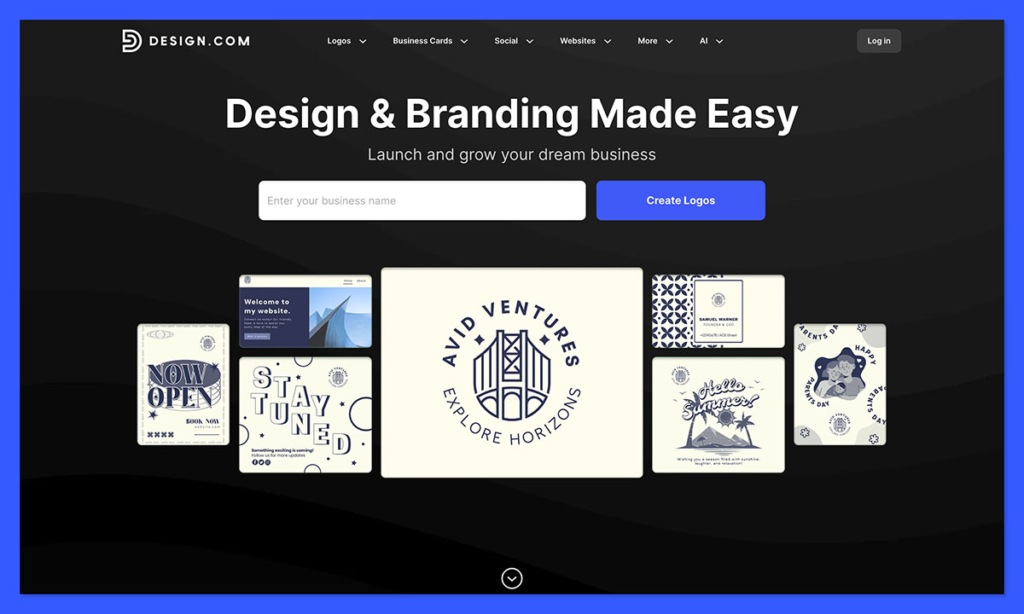
There are dozens of templates to experiment with on Design.com, even if the logo maker and website design tools get the most attention from many ecommerce brands. I’m not going to go too deep into every creative asset here. Some stuff like “postcards” probably won’t matter to most brands.
But here’s a quick look at the things you can create that actually save you time when you’re growing a business.
Logos (the obvious starting point)
The logo maker is one of the best things about Design.com’s toolkit. It gives you 360,000+ assets to work with, as part of a full design platform.
You also get advanced AI that can generate new images and custom fonts just for you. That means you don’t get the same generic logo options you’ll see on hundreds of other platforms.
The really great thing about the logo creator is how easy it is to use. You type in a business name, pick an industry, throw in a couple of keywords, and you’re staring at dozens of options in seconds.
After that, you can tweak colours, swap fonts, adjust spacing, and change icons without the tool falling apart. It’s guarded, but not brittle.
You won’t accidentally destroy the layout by dragging something half a millimetre too far, which I know sounds minor, but it’s exactly how a lot of founders end up with ugly logos.
The download options are impressive too. PNG and JPG for web, plus SVG, EPS, and PDF for print. Transparent backgrounds are included. Animated logos exist too, which I don’t personally care about, but they make sense for social intros or lightweight video use.
One thing to be aware of early: the fonts inside your logo stay inside the platform. You’re not walking away with font files you can reuse elsewhere.
Websites and landing pages
Don’t expect to get the same “comprehensive” website building experience from Design.com as you would from something like Wix, Shopify, or Squarespace. That’s my first bit of advice.
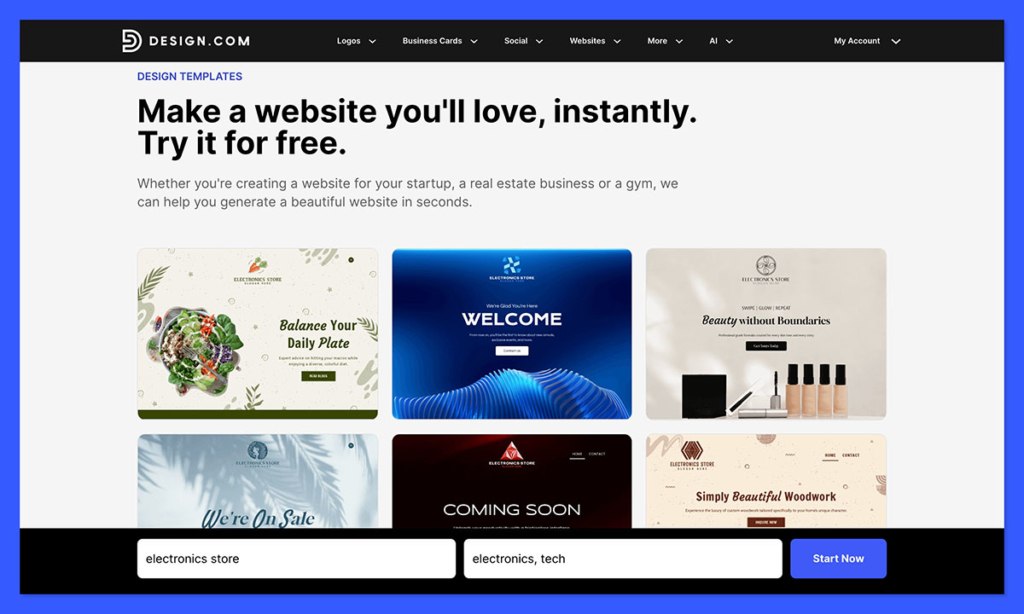
Design.com’s websites are better thought of as brand pages than full stores. You can generate a site quickly, especially using the AI builder, and it’ll look clean without much effort. Colours, fonts, and layout all follow the logo you picked, which is the point.
These work well for:
- Brand homepages
- Pre-launch pages
- Promo or campaign sites
You’re not getting an all-in-one CMS, but you are getting a tool for designing a website that makes it easy to ensure consistency. You can create your brand kit and make sure everything feels cohesive, from your business cards, to your social media marketing campaigns.
Design.com also has a handy AI domain name generator, which is helpful if you’re in the initial stages of setting up your site, and still struggling to find a name.
Business cards, email signatures, and little extras
There are plenty of tools that can help you create a logo. Design.com is one of the few platforms that lets you build everything your brand might need. You can use the same brand kit and AI-powered tools to make business cards, email signatures, letterheads, invoices, menus and gift certificates.
There are even tools for designing link-in-bio pages, QR codes, and invitations. Because everything pulls from the same brand settings, you don’t end up redoing colours or guessing which logo version to use. It’s dull work made tolerable, which is honestly the best compliment I can give it.
If you want to go even further with “printed” assets, you can design more than just posters and flyers too. You’ll also find tools for creating custom t-shirt designs you can upload to your print on demand platform, if you’re looking for a quick way to make extra money, or design a workplace uniform.
Social assets (for almost every channel)
I usually dread the social side of branding tools, because this is where they lie to you.
They’ll show you a nice Instagram post template on a landing page. Then you actually try to make five related assets: a Facebook cover, an Instagram story, a LinkedIn banner, maybe an Etsy shop banner, and suddenly nothing lines up.
Design.com avoids that mess by being a bit stubborn.
Once I picked a logo and colour direction, I stopped making decisions. That sounds small, but it isn’t. A Facebook cover and an Instagram post shouldn’t feel like cousins from different families. Here, they don’t. Same spacing logic. Same font weight. Same palette. I didn’t have to tweak much.
The designs aren’t always the most exciting, but they look cohesive and professional, and that’s more than I can say for half the social graphics I see attached to new stores.
You also get more coverage here than most other sites offer. Not just Instagram and Facebook images, but YouTube banners, Pinterest Pins, Zoom backgrounds, and Snapchat filters too.
Videos and presentations
Honestly, I probably wouldn’t recommend Design.com for serious video editing. If you expect that, you’ll be disappointed.
Where it does help is quick motion. Animated logos for social. Simple clips that don’t look broken. There’s also the presentation templates, which are more useful than they seem.
I’ve sent enough ugly wholesale PDFs to know that a clean, branded deck changes how seriously people take you. These aren’t impressive slides.
They’re competent ones, and that’s all you need. The AI features are surprisingly helpful here too, making sure animations look smooth and removing backgrounds automatically. Just don’t go in hoping for anything too advanced.
Why Design.com’s AI Tools are Worthwhile
Design.com talks a lot about AI, but the important thing is that all of its AI tools behave the same way. They’re narrow, simple, and restrictive enough to reduce risk.
You’re not asking the AI to invent something brilliant. You’re asking it to get you past the parts of branding that waste time and energy. You’ve got a lot of AI-powered solutions here for:
- Business name generation
- Logo creation
- Background removal
- Domain name generation
- Website building
- Business card, poster, and flyer creation
- Link-in-Bio generation
- Presentations
Everything starts with the same inputs: your business name, a rough industry choice, a few keywords. Those choices follow you around. Logos, websites, flyers, and social posts all read from the same pool. You’re not explaining yourself from scratch every time.
The first round of results is rarely perfect. That’s fine. What matters is that the second and third rounds don’t drift off into nonsense.
When I added or removed keywords, the changes were predictable. Fewer surprises. Less visual whiplash. It felt more like narrowing something down than spinning a roulette wheel.
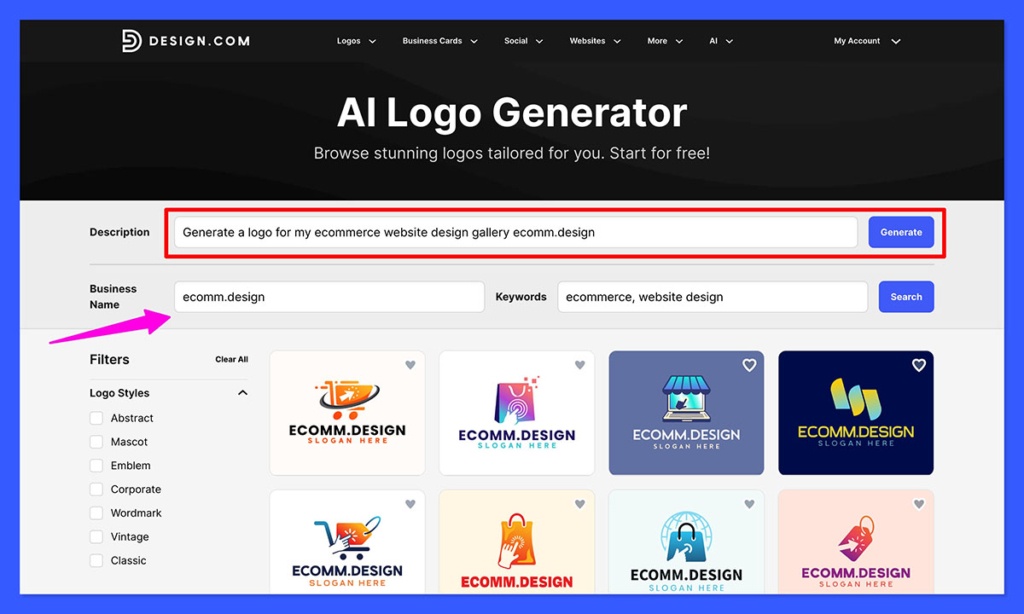
The AI also has opinions, which I didn’t expect to appreciate. Font pairings stay sensible. Colors don’t clash. Layouts follow familiar patterns. You can’t accidentally create something truly awful, even if you try.
Where the AI stops helping is where taste and judgement start. It won’t give you a bold brand voice. It won’t invent a personality. It won’t know when “safe” has crossed into bland. That part’s still on you.
Used properly, the AI here doesn’t try to impress you. It clears the boring hurdles so you can focus on decisions that actually matter.
Pricing: What Design.com Actually Costs
Design.com lets you poke around almost everything without paying. You can generate logos, build assets, test the AI tools, and preview exports. In fact, there are dozens of free templates for logos, websites, business cards, and more that you don’t need to pay anything for.
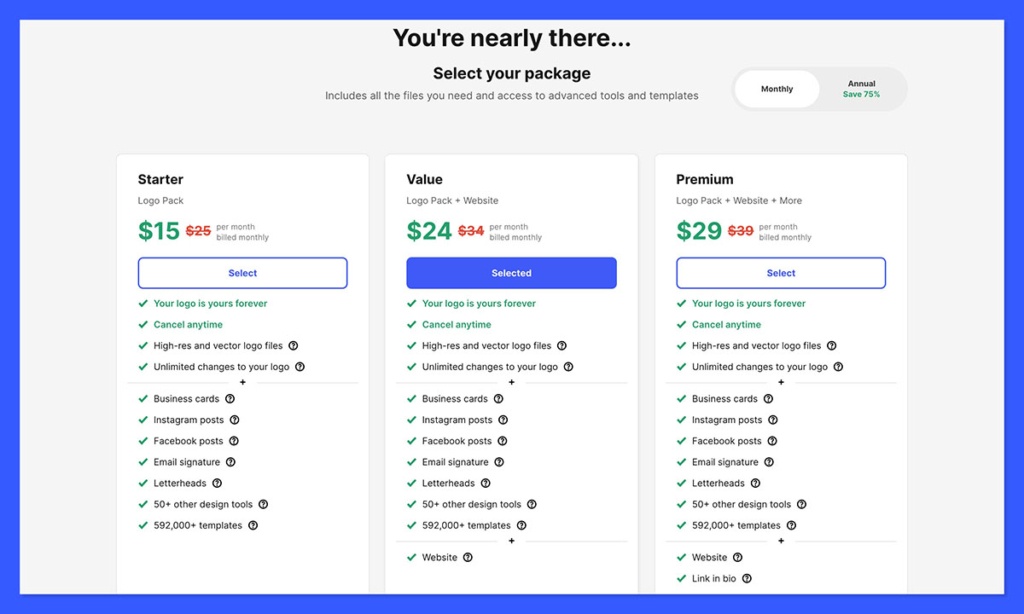
If you want more, there are three paid plans:
- Saver: $15/month
- Value: $24/month
- Premium: $29/month
What changes as you move up the plans isn’t the core functionality. You’re not unlocking secret tools. You’re unlocking access to more downloads, broader asset use, and full commercial licensing without constantly checking limits.
The Saver plan is fine if you’re doing a small launch or tidying up an existing brand. One logo, a handful of assets, done. The Value plan makes more sense if you’re actively publishing content or building out multiple materials. Premium is for people who don’t want to think about limits at all and just want everything available.
One important detail people miss: you’re not paying for a single logo and walking away. This is subscription pricing, not a one-off purchase. That’s either a plus or a minus depending on how you work.
If you only need one asset and never plan to touch the platform again, it can feel expensive. If you’re building, adjusting, and adding things over time, the math makes more sense.
Compared to hiring a designer, it’s cheap. Compared to DIY-ing everything with free tools and your own time, it’s a trade-off. What you’re really paying for is speed, consistency, and fewer chances to mess things up.
The Verdict: Should You Use Design.com?
You’ll get value out of Design.com if you’re the kind of founder who wants to make a few solid decisions and then stop thinking about design for a while.
It works well when you’re launching something new, testing an idea, or cleaning up a brand that looks a bit improvised. You pick a direction, and the platform keeps you inside it.
It’s also a good fit if design stresses you out. If you’ve ever spent an hour nudging text around and ended up worse off than when you started, the guardrails here will feel reassuring.
You probably shouldn’t use Design.com if you enjoy design work, or if visual details matter to you more than speed. The moment you want full control over typography, spacing, or layout logic, the platform will feel restrictive.
The other thing to be honest about is commitment. This isn’t a “buy a logo and leave” setup. It makes the most sense if you’re going to keep coming back to it as your brand evolves. If you only need one asset and nothing else, there are cheaper ways to get there.
With Design.com, you won’t get originality handed to you. You won’t get creative breakthroughs. What you get is momentum, with fewer chances to sabotage yourself along the way. If that sounds appealing, it’s worth a try.


