
 By Bogdan Rancea
To improve your Shopify store’s speed, focus on choosing a fast theme like Dawn, compressing your images using tools like TinyPNG, removing unnecessary apps that load extra scripts, and optimizing fonts and videos.
Clean up your Liquid code, lazy load below-the-fold content, and leverage Shopify’s built-in tools like the Theme Inspector to identify what’s slowing you down.
These simple changes can make your site load faster, rank better in Google, and convert more customers—without needing server-level access or custom tech.
TL;DR: How to Improve Site Speed on Shopify
| Tip | Description |
|---|---|
| Use a lightweight Shopify theme | Avoid bulky themes with bloated code and too many features |
| Remove unused Shopify apps | Every app adds scripts that slow down the site |
| Compress images and use WebP | Large image files are the most common reason for slow Shopify stores |
| Use system fonts | Custom fonts look good but are heavy to load |
| Defer non-critical JavaScript | Prevent scripts from blocking page load |
| Lazy load off-screen content | Speeds up the initial page load, especially on mobile |
| Use tools like PageSpeed Insights | Identify slow-loading elements and optimize them |
1. Why Shopify Site Speed Matters More Than You Think
Shopify makes it easy to launch and scale an ecommerce brand, but many store owners overlook one of the biggest performance levers available: site speed.
A slow website doesn’t just frustrate users — it also costs you traffic, revenue, and long-term customer trust. If your store takes more than a few seconds to load, even the best design or product catalog won’t save you.
Visitors form a first impression of your store in seconds. When a beautiful Shopify layout takes 3 to 4 seconds (or longer) to load, users assume something is broken. The emotional reaction is immediate. People associate speed with professionalism, reliability, and security. A slow store looks dated — even if the branding is fresh and the UI is slick.
Beyond aesthetics, site speed directly impacts SEO. Google includes speed in its ranking algorithm, and slower stores tend to rank lower in mobile results. That’s a double loss — not only do fewer people discover your site organically, but the ones who do might leave before the page finishes loading.
Here’s what a slow store can cost you across key ecommerce areas:
| Problem Area | Impact of Slow Speed |
|---|---|
| SEO | Lower rankings, reduced visibility in search |
| UX | Poor first impressions, perceived as outdated |
| CRO | Higher bounce rates, lower add-to-cart and checkout completions |
| Ads | Increased CPA due to poor user engagement |
| Brand Trust | Users associate slowness with unreliability |
A Deloitte study showed that improving mobile load times by just 0.1 seconds led to an 8.4% increase in conversions. That’s not a marketing stat — that’s real revenue. Shopify brands with heavy mobile traffic stand to gain the most by focusing on these marginal speed improvements.
Poor performance also increases bounce rates. If your homepage or product page takes longer than three seconds to load, expect 30% to 50% of users to leave instantly — especially on mobile. These high bounce rates hurt not only sales, but also distort your analytics and drive up advertising costs.
Slow sites also struggle with customer trust. It’s especially damaging when your store sells high-ticket or niche items.
If a new visitor clicks an Instagram ad and the landing page stutters or stalls, their natural reaction is doubt. Trust disappears before the hero image even loads. That’s not a conversion issue — it’s a design failure caused by performance bottlenecks.
To sum it up, speed isn’t just a tech issue — it’s a revenue issue. And in many cases, the fixes are within your control. Optimizing for speed doesn’t just make the site feel faster. It makes the entire customer journey smoother, more enjoyable, and more profitable.
2. Choosing the Right Shopify Theme for Speed
One of the easiest and most effective ways to boost your store’s load time is by selecting a fast, optimized theme. Shopify’s themes are not created equal, and many premium themes are packed with features you’ll never use.
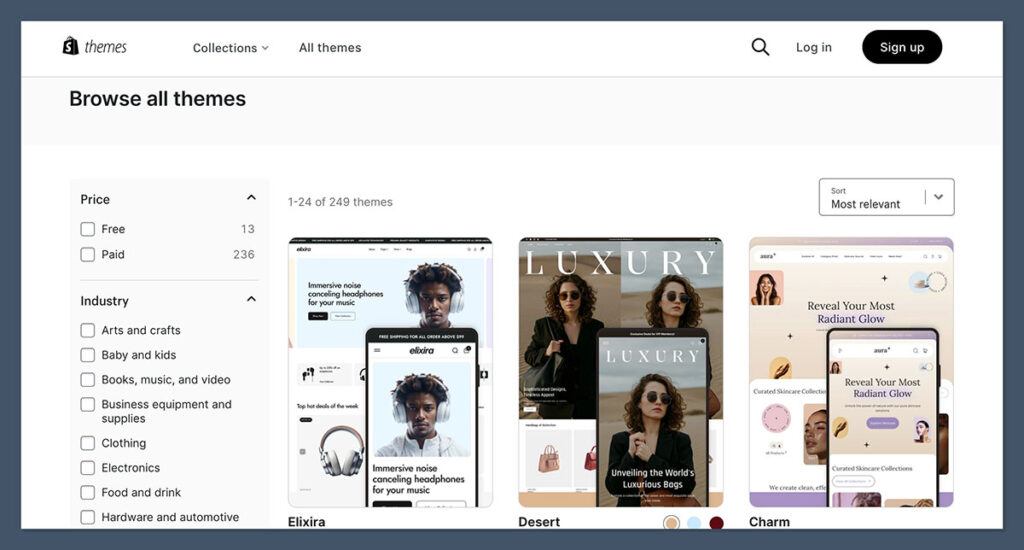
What to Look for in a High-Performance Theme
- Minimal JavaScript and CSS: Themes that load only what’s needed are much faster.
- Mobile-first design: Fast themes are built with mobile users in mind.
- Native support for lazy loading: Modern themes support lazy loading for images and sections.
- No reliance on external libraries: Fewer external scripts = faster pages.
Best Shopify Themes for Speed
| Theme | Description | Load Speed |
|---|---|---|
| Dawn | Shopify’s default theme, minimal and fast | Excellent |
| Debut | Great for simple catalogs and clean UI | Good |
| Prestige (Optimized) | Premium theme with better performance when stripped of extras | Moderate |
| Craft | Another Shopify native theme with performance focus | Very Good |
Avoid Feature Creep in Theme Customizations
While it’s tempting to choose a theme with all the bells and whistles, every added animation, section, and functionality increases the amount of code your browser needs to process. Avoid bloated mega menus, auto-sliding carousels, and hover effects unless they serve a functional, conversion-related purpose.
Stick With Native Shopify Themes Whenever Possible
Native themes built by Shopify follow strict performance guidelines and tend to be updated more frequently. These themes are built to work seamlessly with Shopify’s backend without third-party dependencies. They’re also more likely to support future performance features and improvements.
3. Apps Can Be Silent Speed Killers
Shopify apps are powerful tools that extend your store’s functionality, but they come with a hidden cost—most of them inject JavaScript, CSS, or third-party tracking scripts directly into your theme.
Even if an app is disabled, it can still affect your site’s speed by loading unnecessary assets. Over time, as you install and uninstall apps, these scripts accumulate and start dragging down your load time, especially on mobile devices.
One of the most important things you can do is regularly audit your apps. Many merchants install apps temporarily for testing and forget they’re still active. Just because you aren’t using an app doesn’t mean it’s not running in the background.
If you don’t clean out your unused apps at least once a quarter, your store may be running five to ten extra scripts without your knowledge.
To reduce app-related bloat:
- Review your full app list at least once per quarter
- Fully uninstall apps you’re no longer using (don’t just disable them)
- Reach out to developers after uninstalling to remove leftover code
- Consolidate features by choosing apps that do multiple things (e.g., popups + reviews + urgency timers)
For example, using one well-optimized app that combines sticky add-to-cart, upsell popups, and email capture is usually faster than installing three separate apps for each function. Every installed app introduces another set of files, and most aren’t optimized for speed. Consolidation not only saves loading time—it often saves money on monthly subscriptions too.
You should also run performance audits every time you install a new app. Use tools like Google PageSpeed Insights and Shopify Analyzer before and after installation. If you see a significant dip in performance, it may not be worth keeping the app—even if it adds a cool feature. Keep a log of these tests so you can track how each change affects performance over time.
Lastly, even after you uninstall an app, remnants of its code often remain inside your theme files. Shopify doesn’t always remove all injected assets.
This leftover code sits there silently, dragging your store’s performance down. After uninstalling any app, especially one that modifies your layout or adds scripts, contact the app’s support team and ask for a theme cleanup or check the theme.liquid and asset folders manually.
4. Compress and Optimize Images Without Sacrificing Quality
Images are often the #1 culprit behind slow Shopify stores. High-resolution product photos look great, but if not optimized, they’ll weigh down your site and hurt performance.
Best Practices for Shopify Image Optimization
- Use WebP or JPEG instead of PNG unless transparency is essential.
- Keep image dimensions in check — don’t upload 4000px wide images if they’ll be shown at 800px.
- Avoid using sliders or carousels that load 5-6 images at once.
Recommended Image Sizes
| Image Type | Ideal File Size | Format |
|---|---|---|
| Product Photo | Under 300 KB | WebP or JPEG |
| Hero Banner | Under 500 KB | WebP |
| Thumbnail | Under 100 KB | JPEG or PNG |
Automate Image Optimization With Shopify Apps
There are excellent image optimization apps like Crush.pics or TinyIMG that automatically compress and convert images upon upload. These tools ensure you don’t forget to optimize product and blog images, which is easy to overlook when you’re uploading in bulk.
Avoid Using Unnecessary Decorative Images
Images should enhance the shopping experience—not distract from it. Avoid filling your homepage with decorative visuals that aren’t tied to the buying journey. Every image should have a purpose, and ideally, a compressed, fast-loading file size.
5. Reduce Custom Fonts, Videos, and Fancy Design Elements
While fonts and videos add polish to a store, they can slow it down dramatically if used carelessly. This is especially true for design-heavy ecommerce stores.
Fonts
Adding custom fonts to Shopify often require multiple HTTP requests and can block rendering. Instead:
- Use system fonts (like Arial, Roboto, Helvetica) for body text.
- Limit to one or two font weights to avoid unnecessary font files.
- Load fonts locally or via a fast CDN if you must use custom styles.
Videos
Auto-playing videos in the hero section or background may look engaging, but they can add megabytes to your page.
- Don’t auto-play videos on mobile.
- Use a poster image and load the video only when clicked.
- Host videos on fast CDNs or embed from YouTube with async loading.
Skip Hero Videos Unless They’re Critical
Hero section videos look nice but offer minimal impact on conversion unless they’re product-focused. In most cases, a static banner with strong copy and a clear CTA performs better in both conversions and speed tests—especially on mobile devices.
Keep Typography Clean and Practical
Too many font families, weights, or sizes lead to cluttered code and a disjointed design. Stick with 1–2 fonts across the entire site and ensure they’re readable across devices. This not only improves load time but also creates visual consistency for your brand.
6. Clean Up Liquid Code and Remove Unused Sections
Shopify themes are built using Liquid, a templating language. Over time, as you customize your theme or switch between multiple developers, your code can become bloated with unused snippets.
How to Tidy Up Your Theme Files
- Remove sections, snippets, and code blocks not in use.
- Minify CSS and JavaScript files.
- Use Shopify’s Theme Inspector to identify slow Liquid loops.
- Consider working with a developer to audit your theme.
Identify Code That’s No Longer Needed
Developers often leave behind unused custom sections or third-party integrations that no longer serve a purpose. These snippets keep loading, even if they’re never rendered. Cleaning this up can cut down on page size and boost server-side render times.
Test in a Duplicate Theme Before Going Live
Always clone your live theme before performing cleanup. This ensures that any accidental removal of critical code won’t break your storefront. Once tested, you can safely push the cleaned-up theme live with confidence.
7. Implement Lazy Loading and Defer JavaScript
You can boost perceived speed by lazy loading off-screen elements and deferring non-critical scripts. This makes your above-the-fold content appear almost instantly.
Tools and Techniques
- Lazy loading images below the fold ensures they don’t load until a user scrolls to them.
- Defer JavaScript using the
deferorasyncattribute in script tags. - Use apps like Hyperspeed for one-click solutions.
Don’t Load Everything Up Front
Instead of loading all your product reviews, related items, and extra tracking scripts on initial load, defer them until after the page is interactive. Prioritize what users need to see first—usually images, prices, and add-to-cart buttons.
Lazy Load Reviews, Recommendations, and Popups
Widgets like reviews or product recommendations often slow down stores significantly. These should be lazy-loaded or conditionally rendered based on user interaction, especially on mobile where bandwidth and screen real estate are limited.
8. Monitor Performance With Speed Tools and Analytics
Testing your site regularly is essential. Rely on tools that give real user data, not just lab simulations.
Tools to Use
| Tool | Purpose |
|---|---|
| Google PageSpeed Insights | Core Web Vitals and speed breakdown |
| GTmetrix | Waterfall view and page size details |
| Shopify Analyzer (SpeedBoostr) | Shopify-specific optimization advice |
| Chrome DevTools | Live debugging and performance audits |
What to Look For
- Time to First Byte (TTFB) under 200ms
- First Contentful Paint (FCP) under 1.8s
- Largest Contentful Paint (LCP) under 2.5s
- Page size under 2MB total
Create a Monthly Performance Checklist
Set a recurring task to audit site speed every month. Track metrics over time and compare before-and-after results when launching new features or campaigns. This ensures you catch performance regressions early and stay on top of long-term speed trends.
Focus on Mobile-First Testing
Many speed tools prioritize desktop analysis, but your Shopify traffic may be 70% mobile. Always check how your store performs on 4G mobile networks using Chrome DevTools with throttling enabled. Optimizing for mobile speed often brings the highest ROI.
Final Thoughts: Speed is a Design Feature, Not a Technical Afterthought
Improving site speed isn’t just a job for developers. If you’re designing ecommerce stores, speed should be a top priority from the beginning. A fast site looks more professional, feels more responsive, and drives more revenue.
From your choice of theme to how you manage images, videos, fonts, and apps—every design decision has a performance consequence. When speed becomes part of the design workflow, the end result isn’t just better-looking. It converts better, ranks higher, and scales more easily.


