
 By Bogdan Rancea
If you’ve read many articles written by me before, you’ll know that personally, I love Shopify. It’s honestly one of my favorite ecommerce platforms, particularly if you’re looking for depth and scalability. But I’d be lying if I said that Shopify (just like every other ecommerce platform), doesn’t work better when it’s connected to other genuinely helpful tech.
For most companies, the first real “connection” you’re going to need (beyond a link to your accounting software), is going to be to a CRM.
HubSpot CRM is my go-to, and the top choice for a lot of smaller businesses because it’s comprehensive, easy-to-use, and perfect for aligning sales, marketing, service, and every other department your store depends on.
It also connects naturally with Shopify; without the integration headaches you’d get with other tools. If you’ve been waiting around for the perfect moment to align your ecommerce platform with your CRM, this step-by-step guide is for you.
Why Connect HubSpot and Shopify?
No-one’s forcing you to work with integrations when you use Shopify and HubSpot. You can use them both separately, but I honestly don’t know why you’d want to.
Shopify is great at the transactional side of running a store, listing products, acing checkout, planning fulfillment, and so on. What it doesn’t capture well is the “why” behind a customer’s behavior, even with the built-in analytics.
HubSpot CRM does. It tracks each visit, click, email, and order in a single profile. Suddenly you aren’t guessing who’s who. You can see the steps someone took before buying, what pulled them back, and what might bring them in again.
Of course, it can only do all this, if you’re actually giving it access to your Shopify store. A lot of companies don’t realize how much money they’re wasting just by skipping the integration step. About one-third of companies lose revenue because their customer data lives in fragments.
HubSpot customers acquire 129% more leads and close 36% more deals after one year on the platform. HubSpot’s integration with Shopify immediately solves that problem. It doesn’t just sync contacts, it gathers orders, checkout flows, product details, marketing outcomes and more.
It also fills Shopify’s reporting gaps, with insights into multi-touch attribution, customer lifetime value, and lead scores.
The more unified your data is, the more easily you can act on it. In fact, with HubSpot’s AI tools, you can take advantage of:
- AI segments that group people by habits you wouldn’t have spotted
- Workflow prompts based on how buyers act
- AI-written emails tuned to the situation
- Predictive scoring that reveals who’s likely to purchase again
Now you’re starting to see why this is worthwhile.
How to Connect HubSpot and Shopify: Step by Step
Before I cover the steps, one thing to note is that not every Shopify field will sync to HubSpot automatically. Meta fields aren’t supported, and opt-outs sometimes need access to the DataHub Starter plan.
Still, even with those quirks, this integration is the most reliable one I’ve tested. The wins outweigh the annoyances.
Here’s how to set it up.
Step 1: The Initial Prep
First, you’re going to need two very obvious things: a Shopify account with admin access, and a HubSpot account, plus a Data Hub starter subscription. The starter subscription Data Hub will allow you to create custom field maps, so it’s typically the best way to get the most out of your connection.
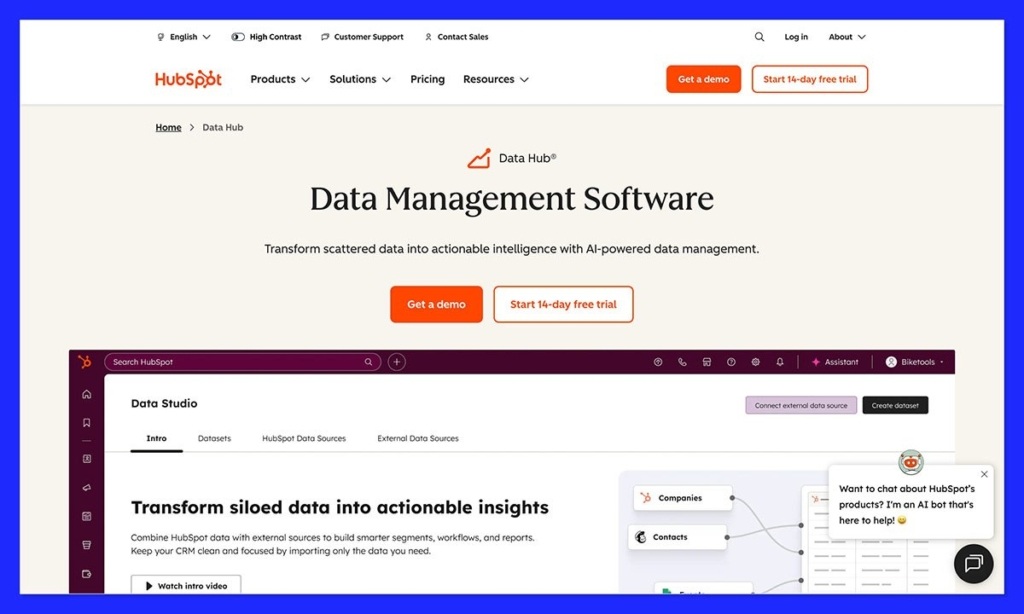
On HubSpot, you’re also going to need to be a Super Admin, or have “app marketplace” permissions, so you can configure the Shopify app.
Step 2: Installing the Shopify App on HubSpot
The easiest route is through the HubSpot App Marketplace. Shopify’s App Store works too, but HubSpot’s install flow feels smoother and gives you clearer prompts. In the HubSpot marketplace (once you’re signed in), search for Shopify and click “Install App”
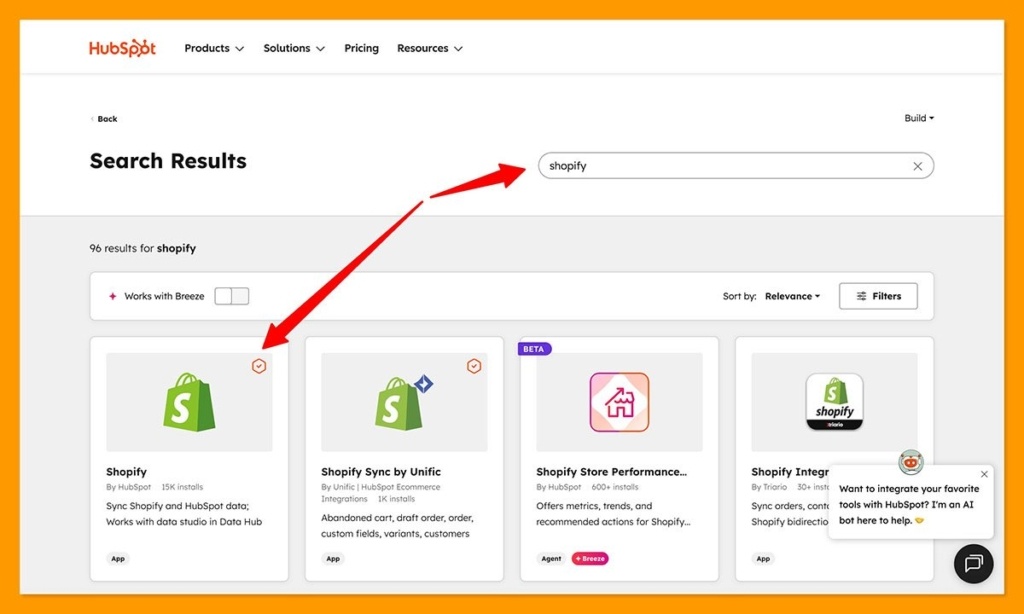
You’ll need to log-in with your Shopify credentials, and enter your store URL.
Once connected, HubSpot immediately:
- Adds its tracking code to your Shopify storefront
- Creates ecommerce objects like Orders and Carts
- Prepares your account for product and contact sync
It’s surprisingly quick and shouldn’t take more than 10 minutes.
Step 3: Configure Data Sync Rules
The sync works both ways, but it’s worth deciding what you actually want flowing into HubSpot. You can sync:
- Contacts
- Companies
- Orders
- Products
- Carts
You can also choose sync direction: one-way or two-way. Most stores keep two-way sync on for contacts and products, and one-way sync from Shopify for orders and carts, since Shopify should stay the source of truth for transactions.
Field mapping is straightforward unless you need advanced mappings. In that case, you’ll need Data Hub Starter to unlock custom fields (mentioned above).
Step 4: Check your Duplication and Deletion Rules
Every object you sync between Shopify and HubSpot comes with its own set of rules for deletion and duplication. Double check these in advance:
- Contacts: Data sync will match records by comparing email addresses. You can stop duplicate records here by selecting “Only sync contacts with an email address” in HubSpot. Keep in mind, when contacts are deleted in either platform, the records won’t automatically be deleted in the corresponding app.
- Companies: Here, data sync matches records based on company name or domain name. Again, any records you delete in HubSpot won’t be deleted in Shopify.
- Products: HubSpot matches products based on their name. When a product gets removed from a Shopify cart, the item will be removed in the order record for HubSpot. However, even if you delete a product in Shopify, it’ll stay in your HubSpot records.
- Orders: Whenever you sync orders from Shopify to HubSpot, they’ll be linked to a product and customer, and a cart and contact record in HubSpot. HubSpot doesn’t automatically merge duplicate records, so keep that in mind.
- Carts: Again, cart sync won’t automatically identify or merge duplicate records, but when you turn on cart sync, the data should be added to HubSpot automatically.
Step 5: Enable Ecommerce Dashboards in HubSpot
Once everything is connected, you’ll be able to see ecommerce reports (based on your Shopify data), in HubSpot. It’s a good idea to create a dashboard from these reports so you can monitor important things like engagement and order levels.
To do that:
- Click on the Settings icon in HubSpot
- Go to Integrations > Connected Apps > Shopify
- Select the Feature Discovery tab, and “Create ecommerce dashboard”
- In the right panel, choose the reports you want to include and click Next.
- Give the dashboard a name, and set user permissions
That’s it. Keep in mind, you can also view Shopify data on your contact records in Shopify. Again, you’ll need to go to your Shopify integration in the “Connected Apps” section of HubSpot, and click on the Feature Discovery tab to enable this. Choose “Get a Shopify overview report”, and “Add Shopify overview card”. From there, you can customize the data you see.
Step 6: Build AI-Enhanced Workflows Using Shopify Data
This is where things get a bit more advanced. Once HubSpot sees your orders, carts, and contact activity, the automation tools feel alive.
A few high-impact workflows:
- Abandoned checkout workflow: Carts sync into HubSpot → AI suggests an email → workflow fires a follow-up at just the right time.
- Post-purchase flow: Triggered from the Orders object. Great for cross-sells, review requests, or product education.
- Win-back sequences: HubSpot flags customers slipping away → segment triggers → AI email drafts help speed up the process.
- Predictive scoring-driven flows: When someone hits a certain score, HubSpot creates tasks, sends emails, or adds them to a VIP list.
You can also use HubSpot’s marketing tools like forms and chat flows in Shopify too. All you need to do is install HubSpot on the Shopify app store, then click on the HubSpot tab in Shopify.
Troubleshooting Common HubSpot and Shopify Sync Issues
Even when the connection is set up correctly, a few problems can show up. Nothing dramatic, just the usual things you run into when two systems suddenly start sharing a ton of data. These are the problems I see most often, and the quick fixes that usually straighten them out.
- Duplicate Email Identities: This happens constantly. Customers check out with one email, then subscribe with another, then use Apple privacy mail on the next purchase. HubSpot reads them as separate people. Merge duplicates inside HubSpot, or add stricter identity rules. It’s usually a one-time cleanup unless your audience is wildly inconsistent with their email habits.
- Mismatched Field Types: Sometimes Shopify stores pack data into custom fields in questionable ways. Dates saved as text. Variants inside meta fields. Dropdowns that switch to free-text mid-season. HubSpot tries its best, but mismatched fields can stop the sync. Align field formats or map complex data to custom HubSpot properties (requires Data Hub Starter in some cases).
- Sync Errors: Most sync errors are either permission issues, conflicts between existing records, or issues with invalid field formats. Click into the error detail. HubSpot usually points to the exact field that caused the slowdown.
Connecting HubSpot and Shopify: The Simple Way
Connecting Shopify with HubSpot always feels like turning on a light that should’ve been wired in from the start. Shopify runs the storefront like a champ, but HubSpot gives you the rest: the context, the patterns, the space to actually understand how people move before and after they buy.
Once the sync has been running for a bit, you start noticing this calm, steady shift in how the data behaves, everything feels smoother.
There’s something satisfying about watching orders, carts, and browsing history settle into HubSpot’s timelines. The AI layers feel sharper when they’ve got real behavior to chew on.
Automations start hitting the right people at the right moments. You get clear wins that don’t require heroic effort, the kind of things that add up over time and make the store feel less chaotic.
It’s honestly one of the few integrations where the benefit is instantly visible. Once you get this level of insight, it’s hard to imagine going back to juggling half a dozen disconnected tools.
FAQs
When should you use HubSpot for ecommerce?
The moment your store outgrows Shopify’s basic customer list. That usually happens once you start chasing repeat purchases, managing VIP buyers, or running inbound marketing. HubSpot makes sense when you want cleaner data, smarter segmentation, and automations that line up with real browsing behavior.
Does HubSpot sync orders, customers, and products from Shopify?
Yes. The current integration is much more complete than older versions. Shopify:
- Orders → HubSpot Orders
- Companies → HubSpot companies
- Checkouts → HubSpot Carts
- Products → HubSpot Products (two-way sync)
- Customers → HubSpot Contacts (also two-way)
And HubSpot automatically drops its tracking code into your Shopify store so it can capture browsing activity, too.
Can HubSpot automate abandoned cart emails?
Absolutely. Shopify carts sync into HubSpot as Carts, which means they can trigger full workflows. You can add AI-generated messages, follow-up branches, VIP variations, or whatever makes sense for your store.
Do you need Data Hub?
Only if you want more complex field mapping or your store uses a ton of custom attributes. Basic sync works without them. If you’re syncing metafields or building more advanced rules, Data Hub Starter helps clear up mapping issues.
Is the Shopify–HubSpot integration free?
Yes, the connection itself is free. But if you want advanced automation, predictive scoring, or deeper personalization, you’ll need a paid HubSpot tier. Most stores start with the free CRM, then upgrade once they see how often the automation tools get used.


